DynamicBooks guides
Verify your company outside the US and Sweden
Companies registered outside the US and Sweden use the current manual verification venue. Keep the company’s actual country and follow its activity and evidence requirements.
Screenshots show reviewed company examples. Explanatory illustrations are labeled and do not represent live verification cases.
Before you start
The right company and account
Use a platform account with access to the company identity. Confirm you are working with the company you intend to connect.
Accurate company details
Check the company identity, registered country and business activity. Follow the evidence instructions provided for your actual onboarding or verification flow.
Read about onboardingStep by step
-
Check your company identity
Companies are normally verified during onboarding. In your company identity, check the verification badge before connecting QuickBooks or another accounting provider. If verification is missing, complete it first. A badge does not replace the connector’s subscription, permissions or approval requirements.
What to expect: You know whether the company already has a verification badge.
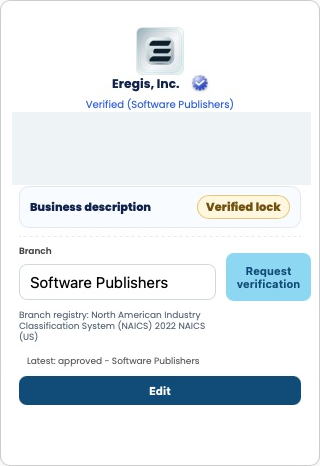
Real redacted US identity example from the authorized Eregis, Inc. session: approved activity and badge. This US example illustrates the controls; it is not proof of verification in another country. 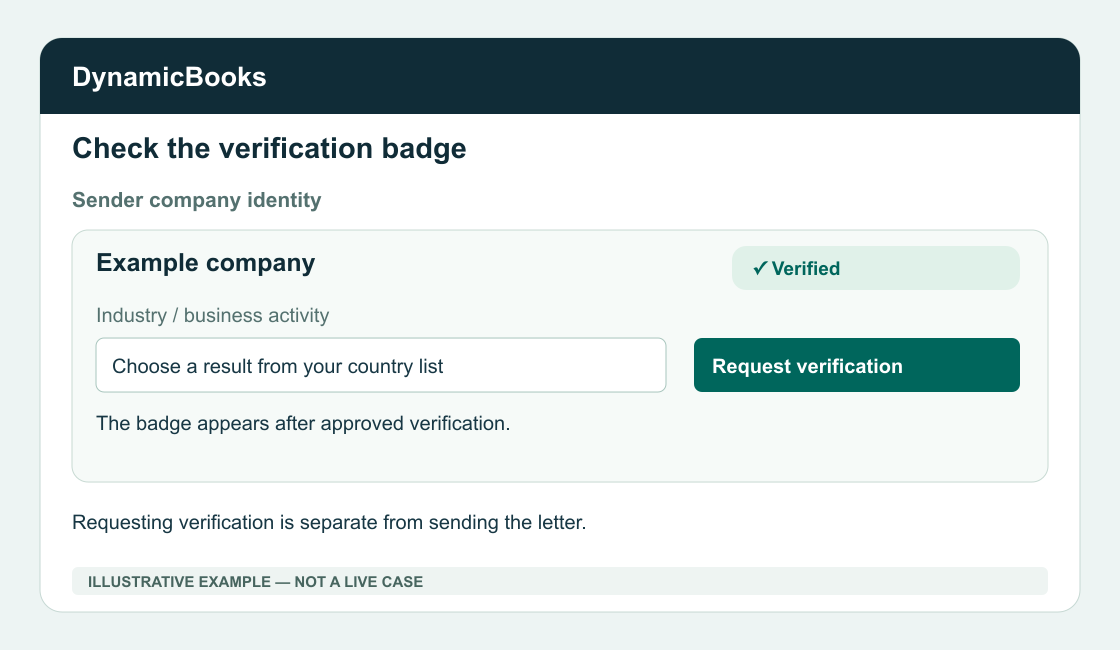
Verified status and identity badge. Illustration, not a live case. -
Open New letter
Sign in to the platform for the company you want to verify and open New letter. Find the sender company identity card in the modal. You are opening verification controls; you do not need to send an outbound letter.
What to expect: The company identity and verification controls are visible.
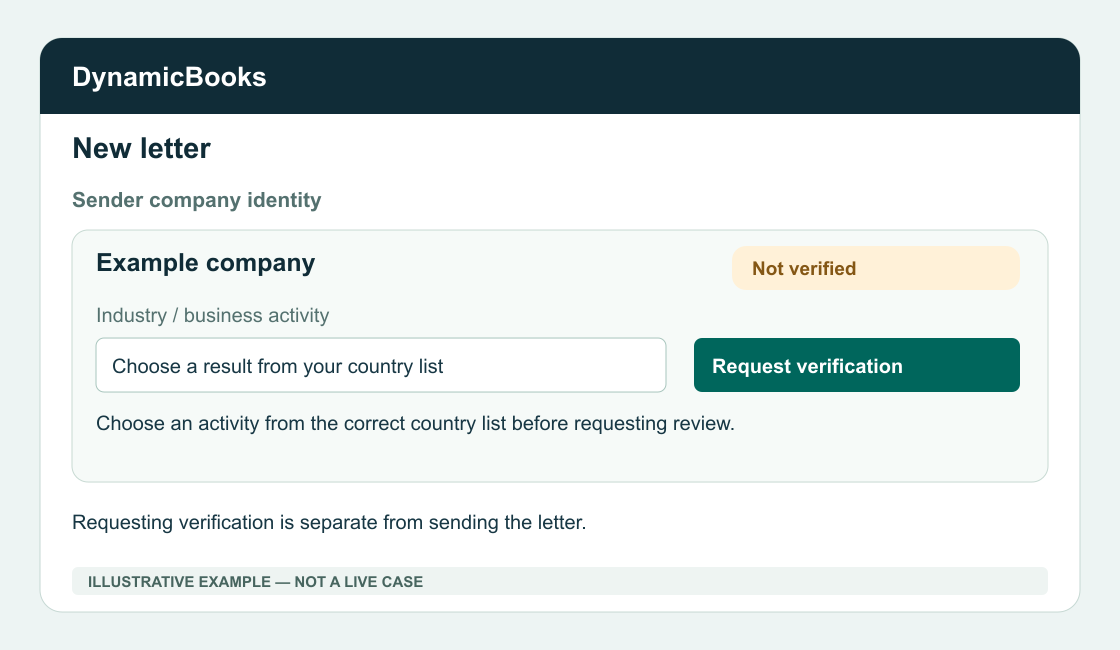
Sender identity in New letter. Illustration, not a live case. -
Select your business activity
In the verification request field, search for your company’s industry or business activity and choose a result from the country-specific list. “Branch” means business activity here, not an office location. Keep your company’s actual registered country. Use the list for your actual country. This international guide does not change your company’s country or bypass its local verification requirements.
What to expect: A valid activity from the correct country library is selected.
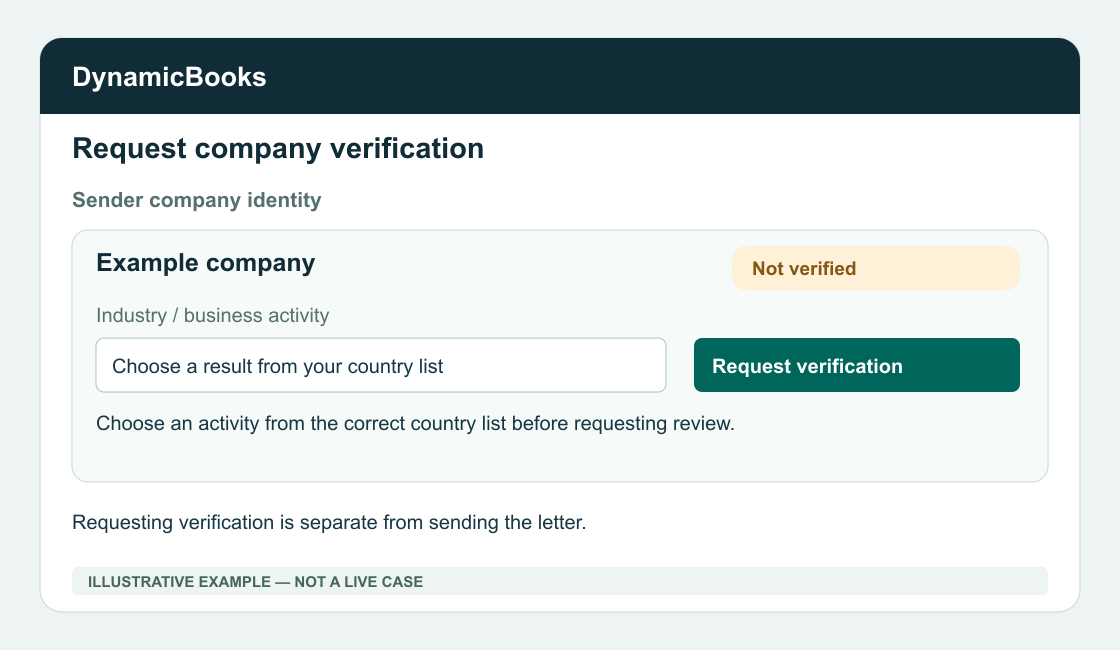
Business activity field and verification request button. Illustration, not a live case. -
Request verification
Select Request verification once. Wait for the platform to return the request status. “Sending…” is a progress message; “Request sent” and the pending status show that the platform recorded the request. While a request is pending, repeated submission is disabled.
What to expect: The returned platform status shows whether the request is pending.
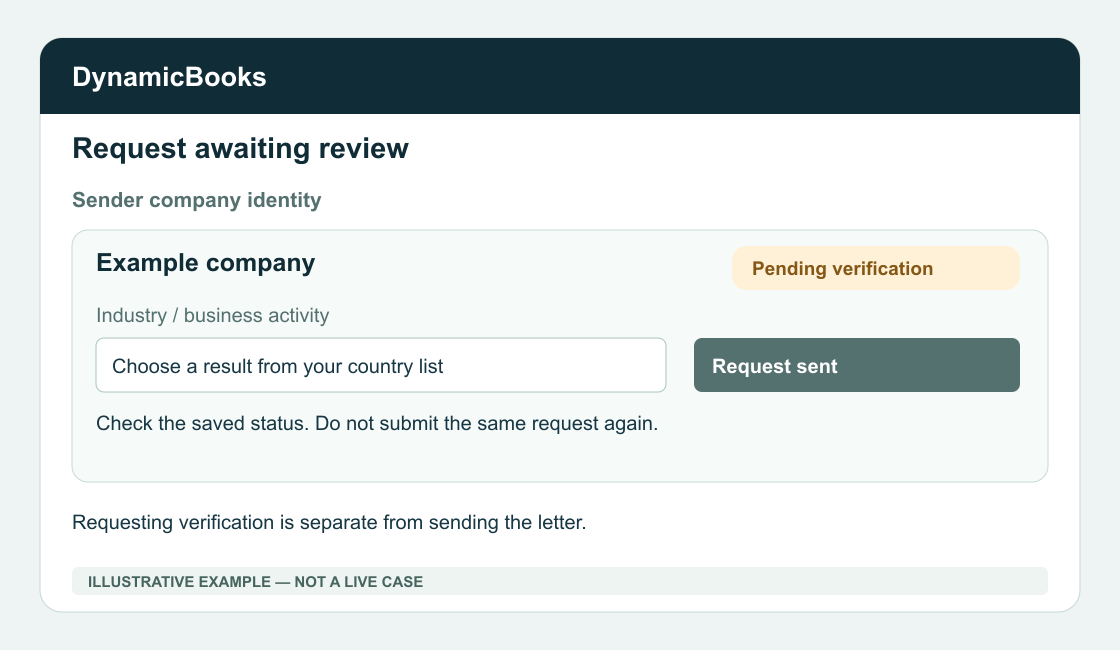
Pending request with repeat submission disabled. Illustration, not a live case. -
Follow the review
The current manual process places your request in the platform’s review queue. The team reviews the company identity and selected business activity. If more information is needed, follow the team’s instructions. A request confirmation email is separate from the review decision; check the platform status even if an email has not arrived.
What to expect: You know the current status and any next action requested by the team.
-
Confirm the badge, then connect
Return to the company identity and confirm the verified status and badge after approval. If the request is declined, review the reason, correct the information and request verification again when the controls allow it. Then return to your accounting integration and complete its separate authorization steps.
What to expect: You have checked the decision before starting separate connector authorization.
Verified status and identity badge. Illustration, not a live case.
What verification covers
Company identity and activity
Verification concerns the platform company identity and its approved business activity. It does not itself grant access to QuickBooks or another provider’s data.
Current manual review
The team reviews requests through the existing manual process. The platform decision, verification badge and connector authorization are separate steps. Follow any request for supporting information; this guide does not add a fixed document checklist or promise an approval time.
Example verification correspondence
Your verification request is recorded
Your company’s verification request is awaiting review. Check the current status in the platform. If the team needs further information, follow the instructions provided.
Illustrative notification; not evidence of a real submission or email delivery.
More information about your company
Please review the company details and selected business activity. The review team may ask for supporting information relevant to your company. Reply through the channel indicated by the team.
Illustrative support correspondence. Information requested is not a separate status in the current request controls.
Your company verification has been approved
Your company’s verification has been approved. Return to the platform and confirm the verified status and identity badge. Complete the accounting connector’s separate authorization before using its tools.
Illustrative approval correspondence; not a real approval.
Review your verification request
Your request was not approved. Read the reason provided by the review team, correct the relevant information and request verification again when the platform allows it.
Illustrative declined-request correspondence. No real rejection reason or company record is shown.
Review and next steps
Check the platform status
Return to the company identity to check the current decision. An email notification does not replace the platform’s decision or badge.
Follow up or correct information
Contact support if you need to clarify evidence or cannot continue. After a declined request, use the stated reason to correct the information before retrying.
Contact supportIf you need help
The right activity is not listed
Check the company country and search the available activity list. Ask support for guidance if you cannot find a suitable result.
Your request is pending
Do not resubmit the same request repeatedly. Check the status and follow any review correspondence.
An email has not arrived
Check the status in the platform and your spam folder. Ask support for help with the next step if needed.