Guides
Connect Gmail or Google Workspace to DynamicMail
Bring supported document attachments from your Gmail inbox into DynamicMail for review. You choose the Google account and review the access before connecting. This connection reads Gmail; it does not send, change or delete email in your mailbox.
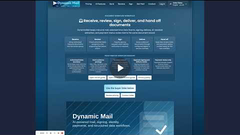
Screenshots are from the published demo. Your account, files and screen layout may differ; follow the current labels in the steps.
Before you start
An activated DynamicMail workspace
Sign in to the workspace you are authorized to use. If you are new, follow your invitation or choose Request account on the DynamicMail website. A public request needs review and does not activate a workspace immediately. Complete the applicable account terms and identity checks before continuing.
The mailbox you want to connect
Have access to your personal Gmail account or your organization's Google Workspace mailbox. Use only an account you are authorized to connect. Your Workspace administrator may restrict third-party access.
Get help activating your DynamicMail accountConnect step by step
-
Sign in to your activated DynamicMail workspace
Open DynamicMail and sign in to the correct workspace. If you still need an account, complete the activation steps in the onboarding guide first. Google sign-in for your DynamicMail account is separate from the Gmail connection below.
What to expect: You can open your DynamicMail inbox and its controls.
-
Open Inbound Sources
In your DynamicMail inbox controls, select Inbound Sources. Choose Add Gmail Mailbox to start adding a mailbox.
What to expect: DynamicMail starts the Gmail connection flow.
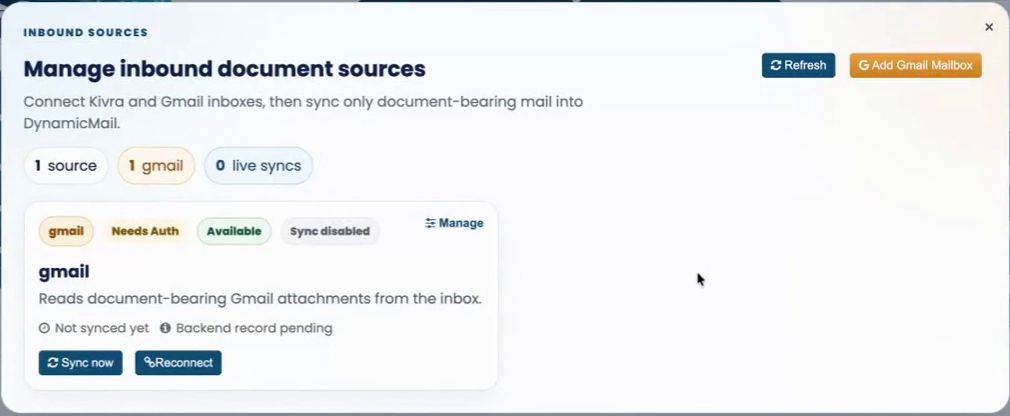
Inbound Sources is where you start adding a Gmail mailbox. -
Read the Google Workspace data access terms
If DynamicMail asks you to accept the Google Workspace data access terms, open and read them. Accept only if you agree, then return to Inbound Sources and choose Add Gmail Mailbox again. These local terms apply to the Gmail connection even when you use a personal Gmail account; Google permission is requested separately.
What to expect: The terms requirement is satisfied and Google authorization can continue.
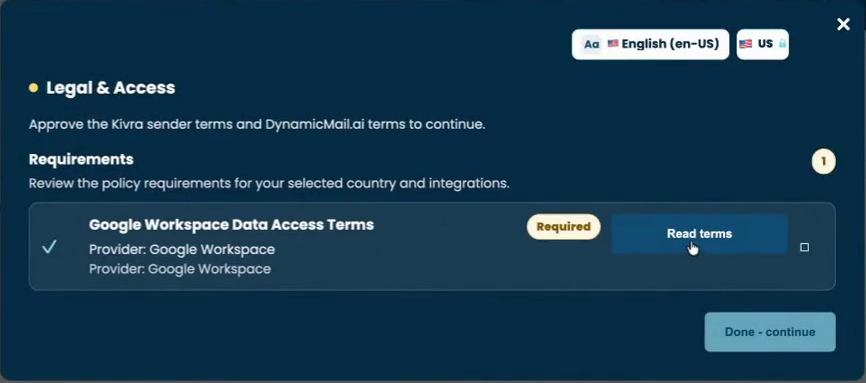
Read the local data access terms before continuing to Google. -
Choose your personal Gmail or Workspace account
At Google, select the account whose mailbox you want to connect, or sign in to that account. Check the email address carefully if you use several accounts. There is no separate Personal or Workspace switch in DynamicMail: the account you choose determines which mailbox is connected.
What to expect: Google shows the permissions for your chosen account.
-
Review Gmail access before you agree
Read Google's consent screen. DynamicMail requests basic identity information and https://www.googleapis.com/auth/gmail.readonly. This Gmail permission can view email messages and settings across the mailbox; DynamicMail's inbox attachment import is narrower app behavior, not a narrower Google grant. Continue only if you agree. If you decline or omit required access, the connection cannot finish.
What to expect: If you grant the requested access, Google returns you to DynamicMail.
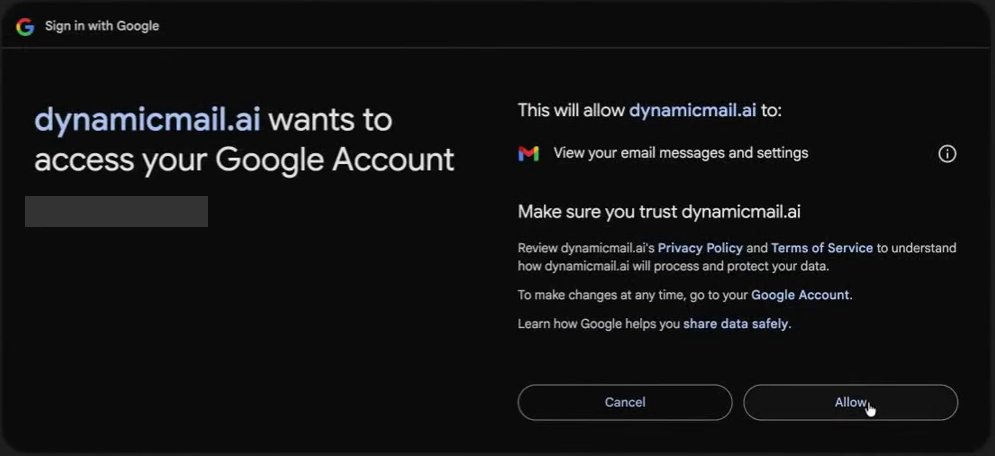
Review the chosen account and Google's Gmail permissions before granting access. -
Check that the mailbox is connected
Back in Inbound Sources, check that the Gmail account card shows the mailbox you selected and a connected status. If you see an authorization error, use Add Gmail Mailbox for a new connection or Reconnect on the existing account card to start a fresh attempt. Do not reuse an old authorization link.
What to expect: The account card identifies the mailbox available for syncing.
-
Choose Sync now
Select Sync now on the Gmail account card. Wait while DynamicMail checks the inbox for supported document-bearing attachments. Check the account's status and last sync information; permission to read Gmail does not mean every message becomes a DynamicMail document.
What to expect: Supported attachments can appear as imported documents in DynamicMail without changing the original Gmail messages.
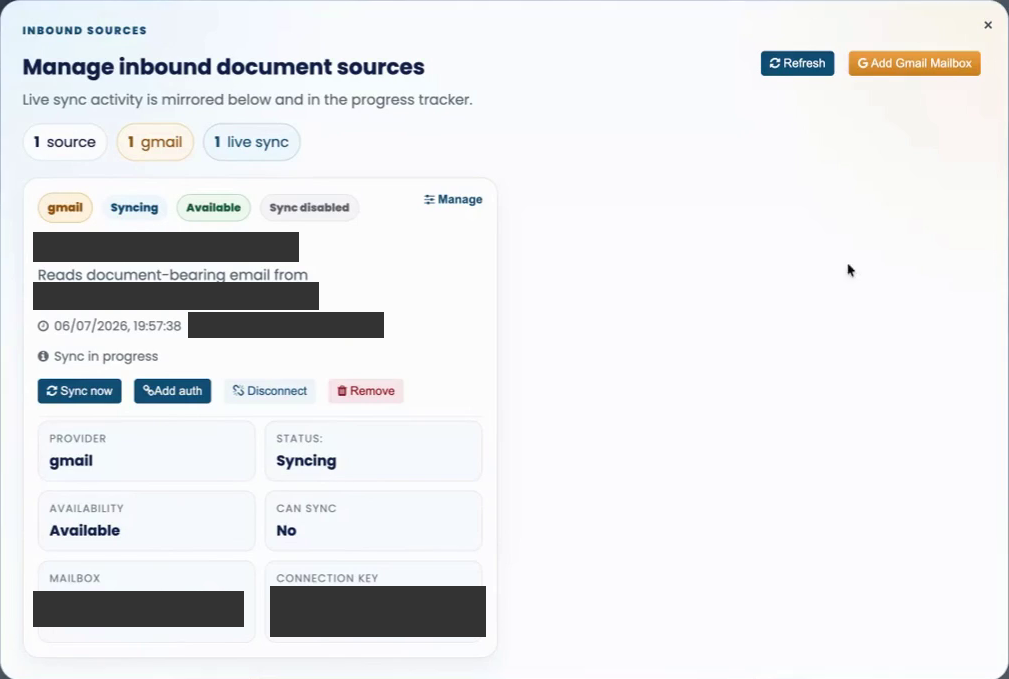
Use Sync now on the Gmail connection to check for supported attachments. -
Review your imported documents
Open the imported items in your DynamicMail inbox. Check each document and its details before using it in an accounting or other workflow. An imported copy is separate from the original email in Gmail.
What to expect: You can review the imported copies; the original messages remain in Gmail.
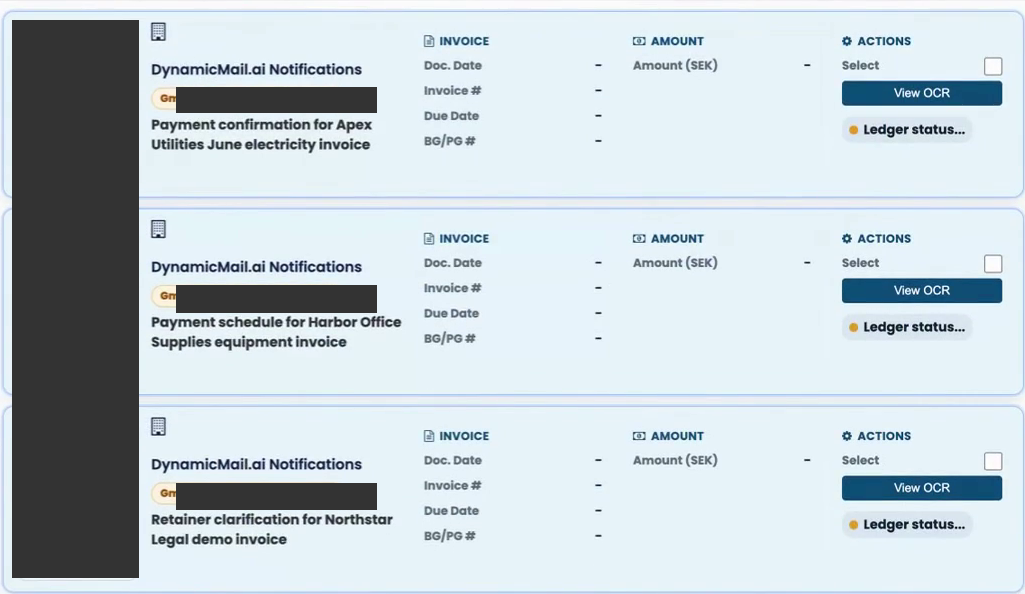
Review document copies imported from the connected mailbox.
Understand the permissions
Read-only Gmail access, not a mailbox-editing permission
The gmail.readonly scope can view your email messages and settings. It cannot send email, modify messages or delete Gmail email. DynamicMail uses this access to find supported document attachments in the inbox. That inbox selection does not reduce the scope Google grants.
Signing in is not connecting Gmail or Drive
Sign in with Google verifies your identity. Gmail access and Google Drive access are separate connection steps, each with its own consent screen. Accepting DynamicMail's data access terms is not the same as granting Google permission. Connecting Gmail does not automatically connect Drive, or the other way around. Review each account and requested permission. Google may group permissions for an app; removing access there can affect other Google connections or sign-in for that app.
Manage your access
Disconnect a mailbox in DynamicMail
Open Inbound Sources, identify the mailbox, and select Disconnect. DynamicMail disables the local connection credentials so it cannot continue using that connection. This action is not confirmation that Google's remote grant was revoked. Review that grant separately in your Google Account. Documents already imported are not deleted.
Remove the mailbox connection
Select Remove on the Gmail account card if you want to remove the local source connection. This is a connection action, not deletion of imported documents or the original email. It does not confirm remote Google revocation. You may need to connect the mailbox again to resume importing.
Remove access in Google as a separate step
Open your Google Account's third-party connections while signed in to the account you connected. Select DynamicMail, find its access to your Google Account, and choose See details. Review the permissions, then choose Remove access and Confirm if you want to withdraw them. Google may show different labels or group several connections. Removing access does not delete copies already imported into DynamicMail. You can choose not to grant access, but the connection needs its requested permissions to work.
Manage imported copies separately
Disconnecting, removing the source or revoking access in Google does not erase documents already imported into DynamicMail. Review those copies in DynamicMail and delete them separately where your workspace permissions and applicable retention rules allow it. Deleting a DynamicMail copy does not delete the original Gmail email.

If something goes wrong
You declined or did not finish consent
Return to Inbound Sources and choose Add Gmail Mailbox, or Reconnect for an existing mailbox that needs authorization. Review the requested permissions again. You can decline, but Gmail import cannot work without the required access.
Your connection or authorization attempt expired
Start a fresh connection from Inbound Sources. Use Reconnect when the account card says it needs authorization. Choose the same mailbox for a reconnect, complete Google's consent, and try Sync now after the connected status returns. If it still fails, give DynamicMail support the displayed support reference, not your password or authorization link.
Your Workspace administrator blocks the connection
If Google says your organization restricts the app or the requested access, contact your Google Workspace administrator. Ask them to review DynamicMail and the permissions shown by Google. Do not try to bypass your organization's policy. Continue only if access is allowed.
Sync finishes but no documents appear
Check the connected mailbox address, the sync status, and whether the inbox contains supported document attachments. Email without an importable attachment may not create a document. If a sync error is shown, resolve it before trying again; contact support if the problem continues.
Watch the Google connection demo
Watch the published DynamicMail Gmail and Google Drive demo on YouTube. The video opens when you select the link.
Watch the Google connection demo